Laptop Motherboard Repair in Monterrey. Free Estimates
MOTHERBOARDS MONTERREY
motherboard
Apple MacBook laptop motherboard repair in Monterrey. At Creativeit we have the solution to your problem, so look no further. We don’t just do repairs: we also sell motherboards at a very good price for Apple laptops, backed by a very good warranty that sets us apart from other companies, and we work at the component level.
We also offer courses on analysis equipment and motherboard repair. These classes are very practical and simple, held in our specialized laboratory with special equipment, where you will learn quickly and comfortably. The training is delivered by our best technician in the field. Ask about our training courses.
Motherboards (Step 1)
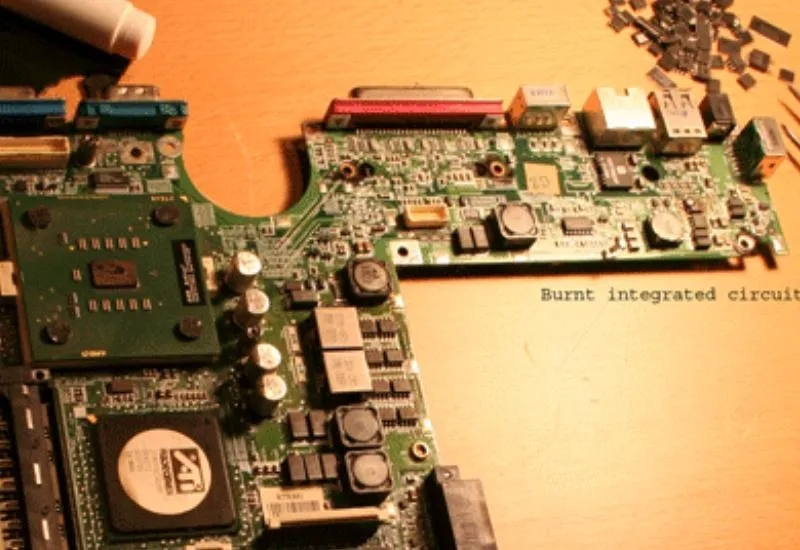
At our repair workshop in Guadalupe, Monterrey, we have chips to replace damaged integrated circuits on computer motherboards or boards with erratic logic behavior. Here we show how a damaged voltage regulator chip is replaced. We provide technical support for all laptop brands and repair at the component level; all jobs are completed within 24 to 48 hours. We perform same-day Express jobs. We have an emergency cell phone for after-hours jobs. We remove Windows and BIOS passwords, and restore hard drives to factory settings with a low-level format. We erase all of your data by overwriting the drives with zeros. We repair the AC connectors of notebook and laptop chargers of any brand, such as Dell, Acer, Sony Vaio, Fujitsu, Gateway, Toshiba, HP, Compaq and Asus. If you have problems with your motherboard, ATI or Nvidia video card, or VGA video chips, leave it in our hands. We repair your motherboard fast. Whether hardware or software, Creativeit is the solution.
Inspection of a Toshiba laptop motherboard (Step 2)
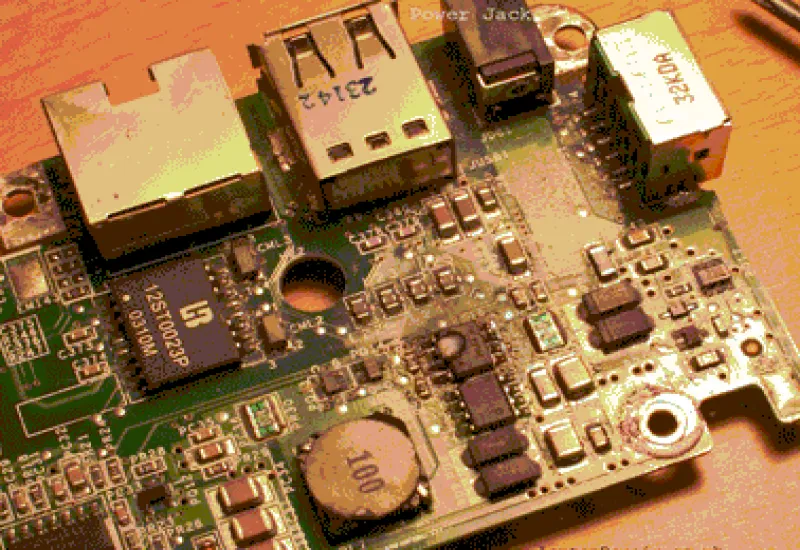
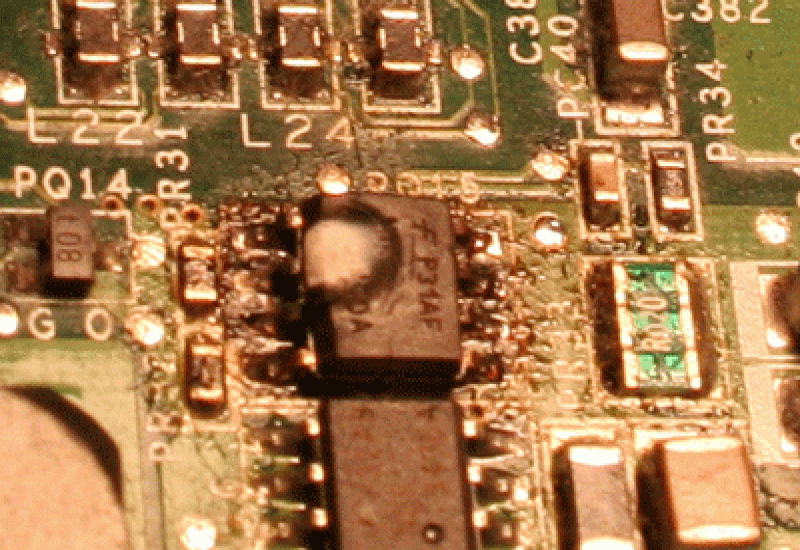
On this computer motherboard from a Toshiba Satellite, the customer told us they saw smoke coming out of their laptop and it would not turn on afterward.
On detailed inspection we saw that a 5-volt regulator chip had burst due to a voltage surge, caused by the improper use of a bad generic Steren charger.
 |
 |
Removing and installing a new regulator chip (Step 3)
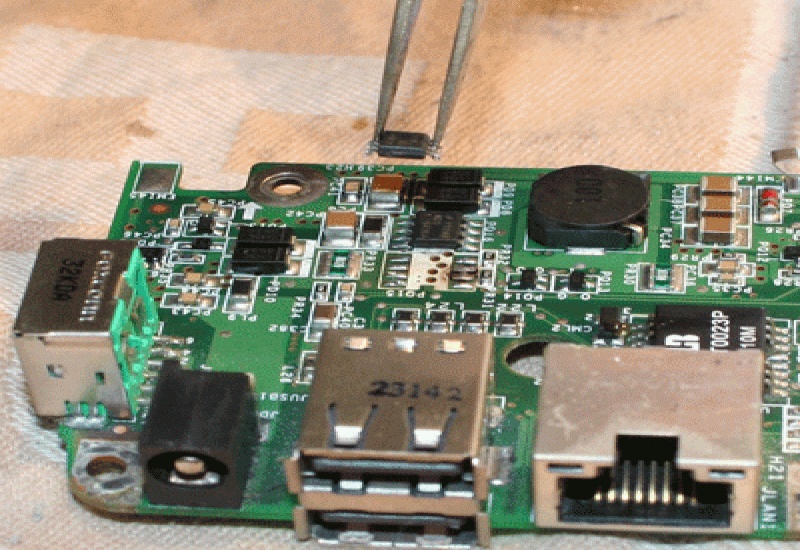
This chip is very small, but with the specialized equipment we have, such as the BlackHawk regulated hot air station and the Hakko preheater, it is an easy task for us. After this repair we sold the customer an original Toshiba charger, and the laptop powered on again. We ran the usual diagnostics and testing, and everything was fine.
 .
.
Next we remove and install a 128-pin VGA chip, a SiS302LV LQFP VGA driver. Note the marking indicating the pin count, which also tells us which pin is pin 1. After removing the damaged chip, the area is cleaned with hot air and desoldering wick. All contacts are checked under a magnifying glass to make sure there are no shorts.
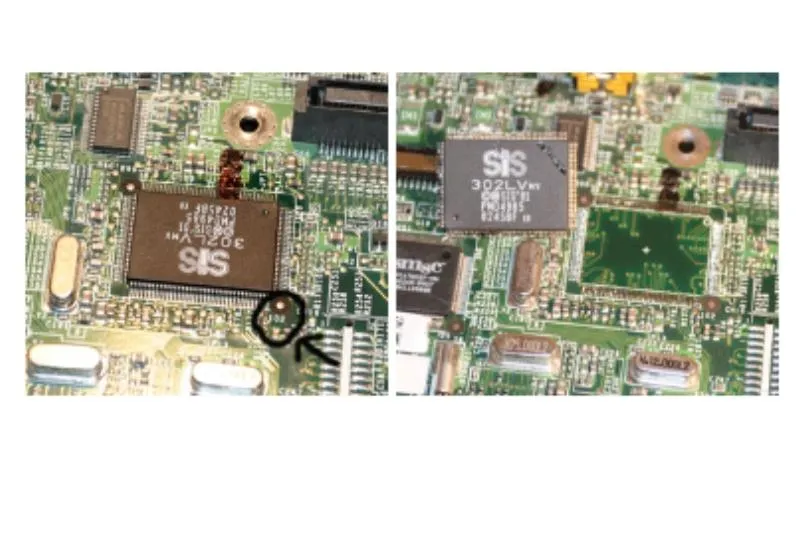
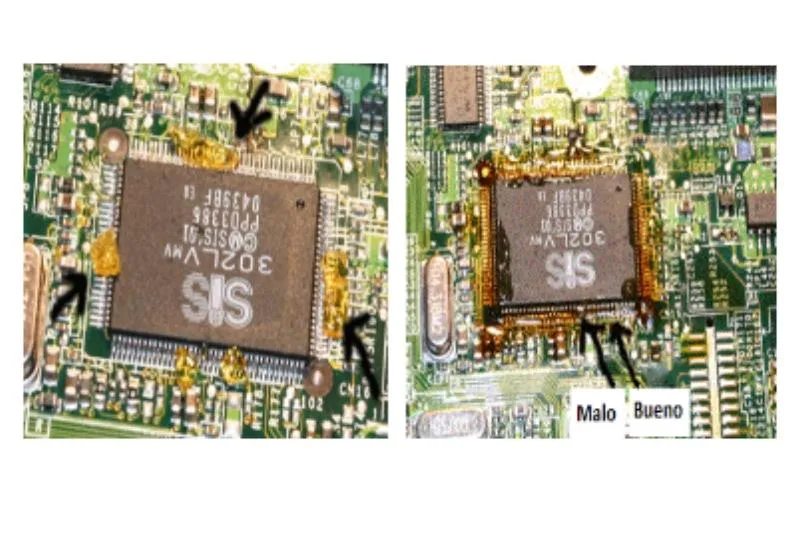
Next we install the new VGA chip (video chip) IC (integrated circuit) in its place, carefully checking every pin.
We apply flux to improve heat conduction. All of the flux must be evaporated before proceeding to finish the job.
Voltage regulator replacement.
| Here we worked on a Dell Latitude D620 brought into the workshop. The problem was flashing lights and the unit shutting off before getting through POST (Power-On Self-Test). We proceeded to measure the voltage levels in all of the power phases and found a PWM (Pulse Width Modulator), the Max1644 (a DC-to-DC converter and switch), in the power stage feeding the ATI circuit, commonly called the video chip. It was not showing us the typical 3.3 volts at the output. This chip, or IC (integrated circuit), has an idle mode, and it was completely shut off. | 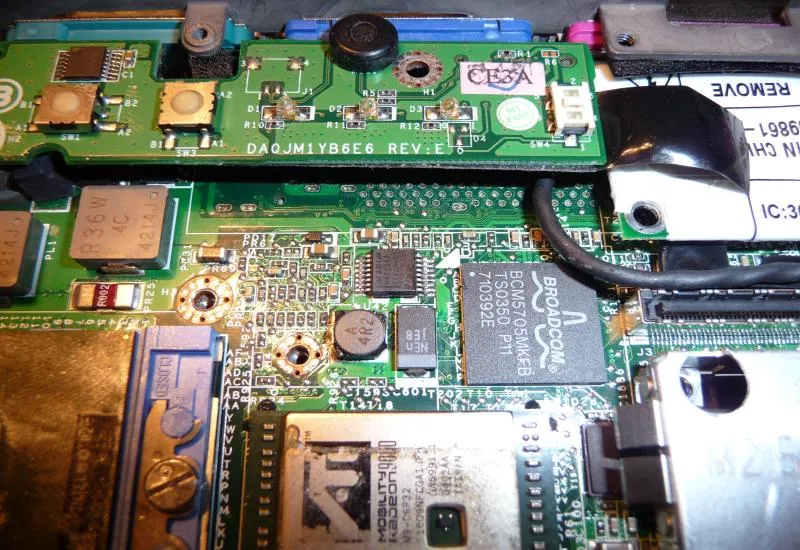 |
| We proceeded to replace it with another regulator converter, the 16-pin SSOP in the middle of the photo. | 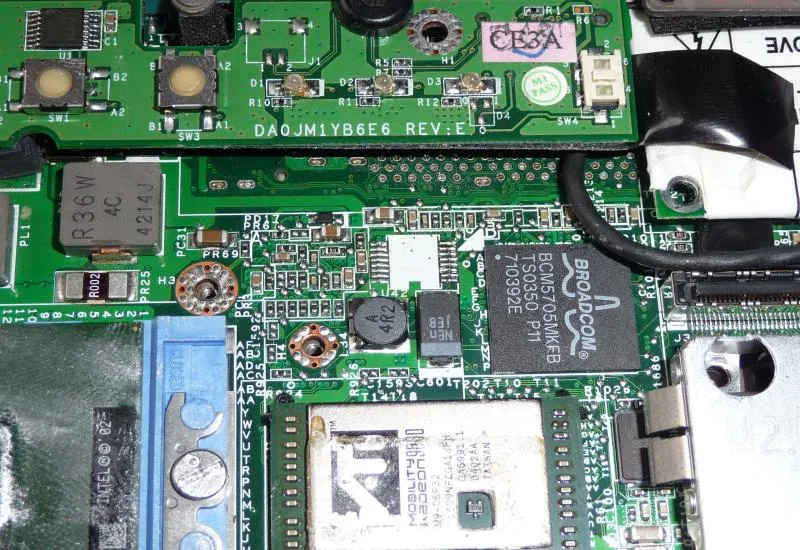 |
|
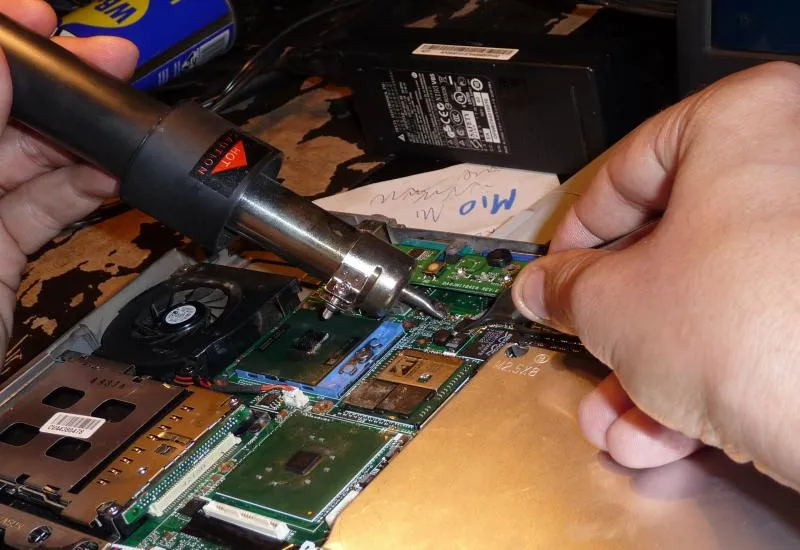
We apply hot air from above and a preheater from below to avoid warping the motherboard, and install the new voltage regulator chip. |
 |
| We replaced it, and fortunately the Dell laptop powered on again and gave us video. We ran a complete diagnostic and everything appeared to be fine. We formatted it and installed a fresh copy of Windows, and it ended up working beautifully. | 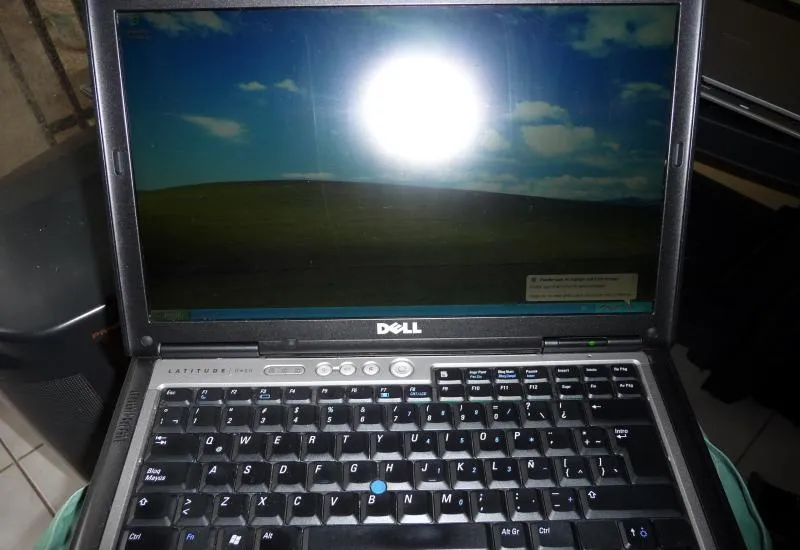 |
Replacing the DC charger or power adapter connector on a laptop
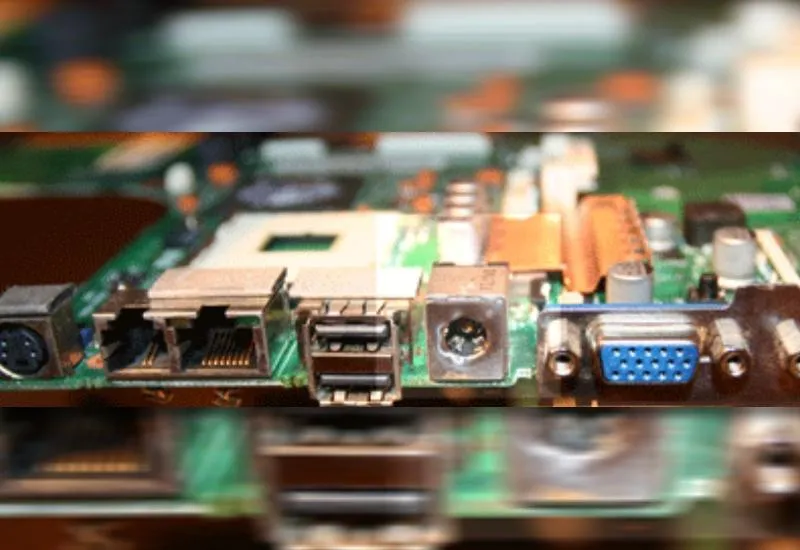
| We show the connections of the laptop’s DC connector, bottom view. | 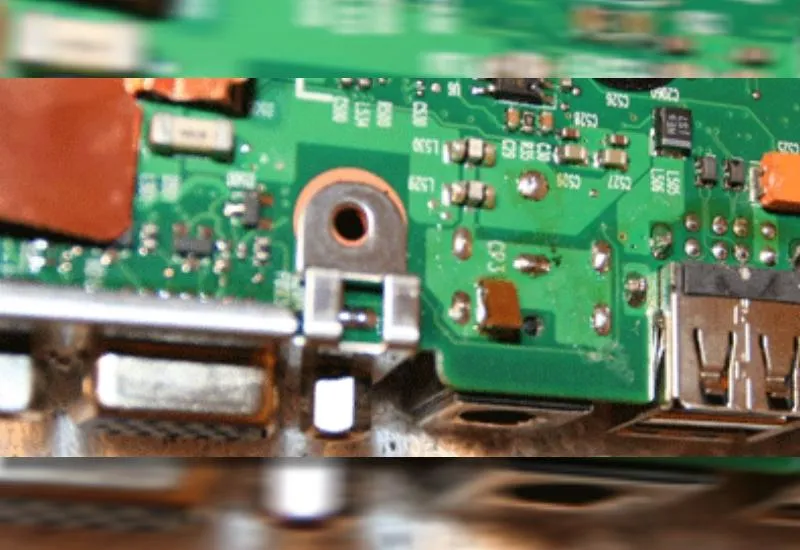 |
| We proceed to remove the solder that held the DC connector in place. | 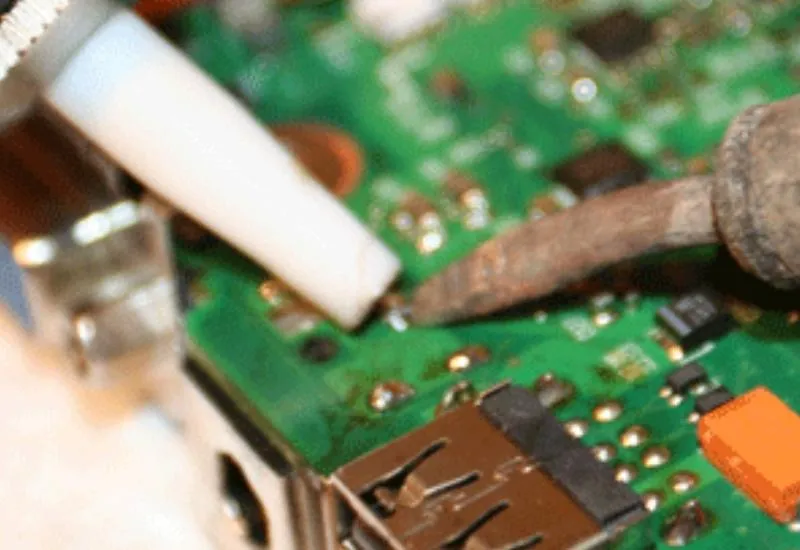 |
| We remove the damaged connector. | 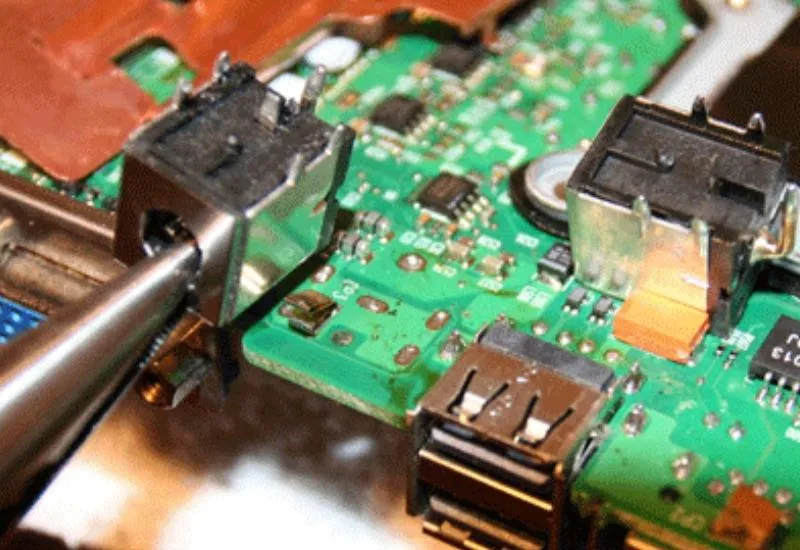 |
| We clean the holes where the new connector will be installed. | 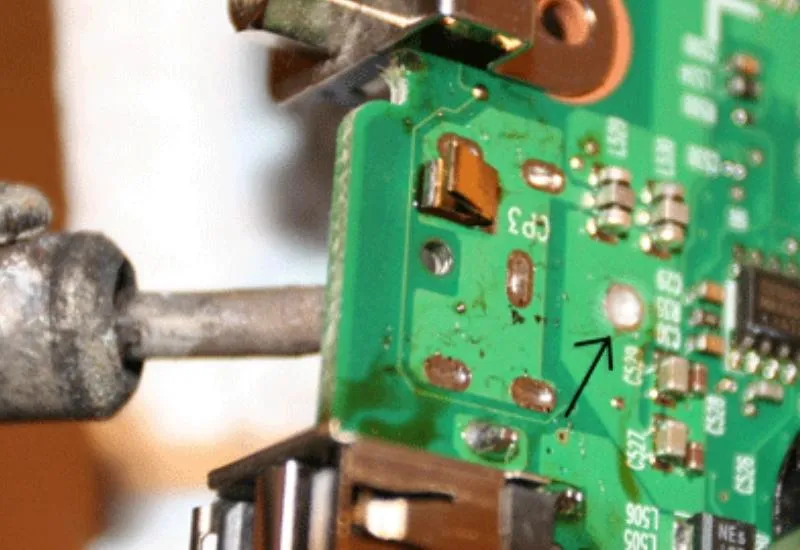 |
| The solder-free area, with the damaged connector now removed. | 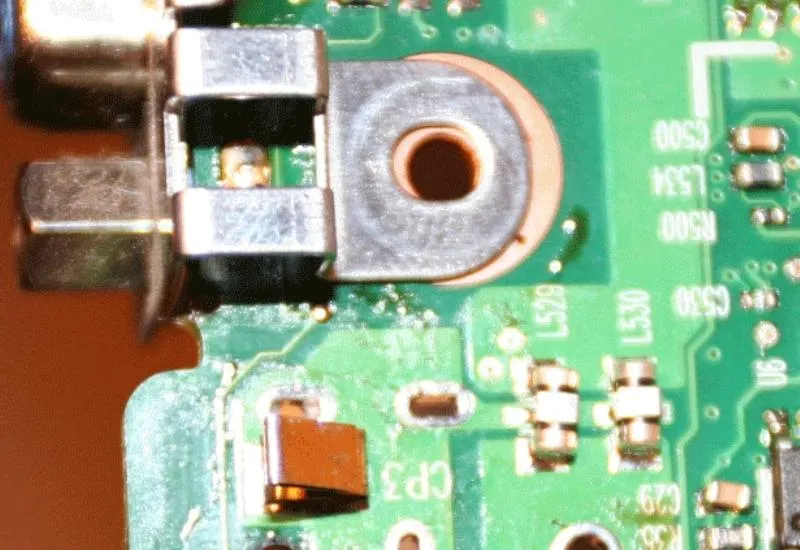 |
| The connector installed in place, not yet soldered. | 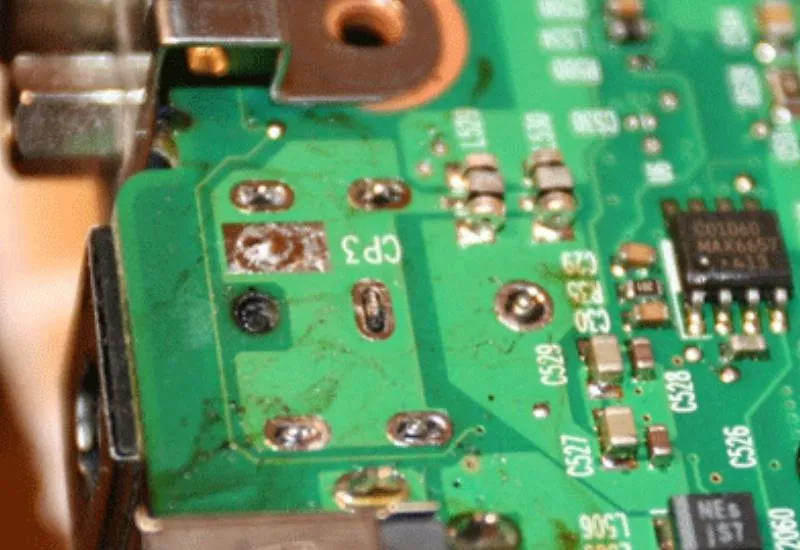 |
|
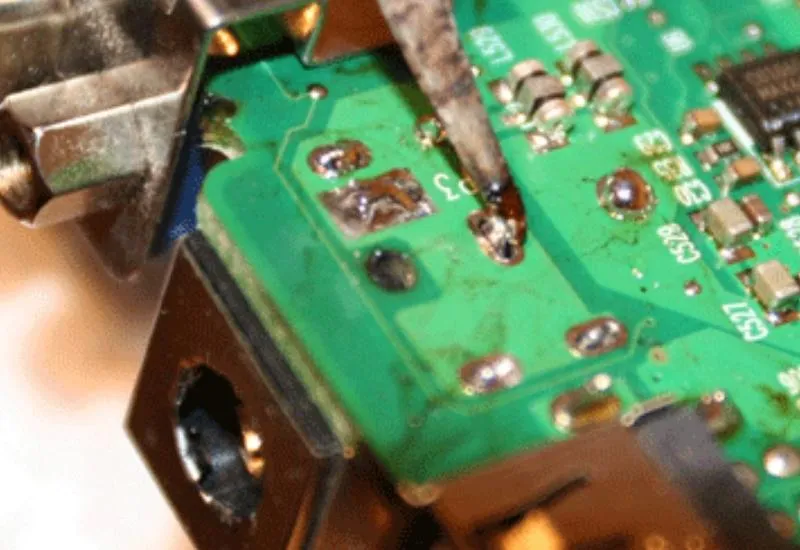
We apply heat and solder to the DC connector contacts. |
 |
| Finally, the DC connector installed on the motherboard, seen from above. | 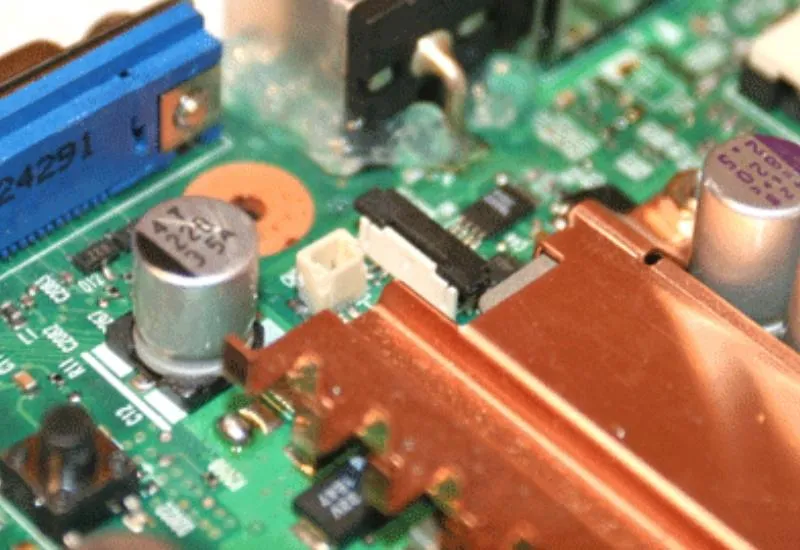 |